
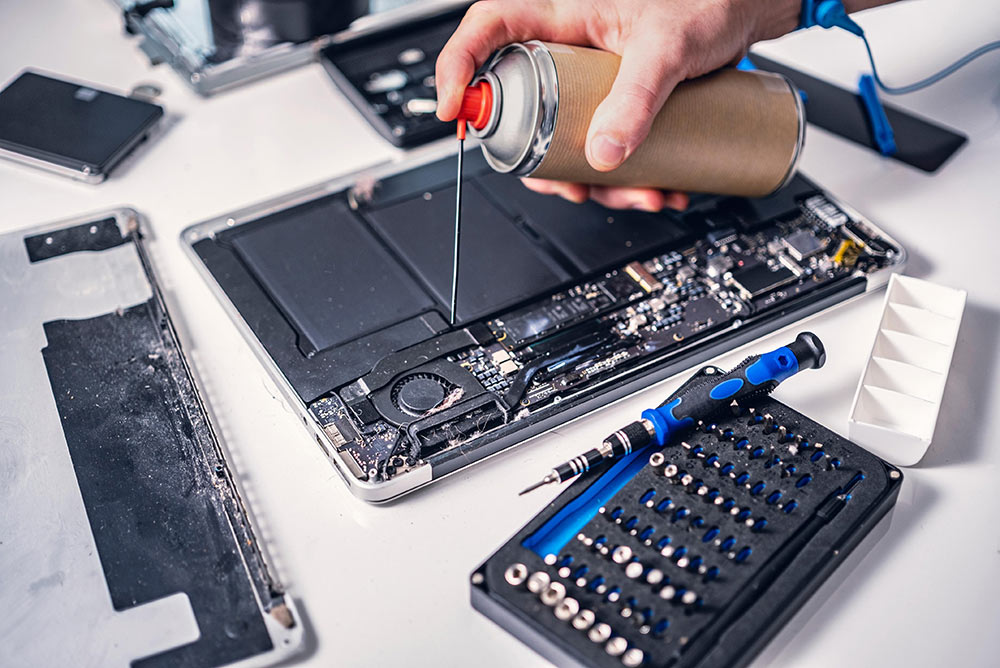
There is a kind of frustration that comes with a laptop that suddenly starts 𝐨𝐯𝐞𝐫𝐡𝐞𝐚𝐭𝐢𝐧𝐠 𝐚𝐧𝐝 𝐦𝐚𝐤𝐢𝐧𝐠 𝐥𝐨𝐮𝐝 𝐟𝐚𝐧 𝐧𝐨𝐢𝐬𝐞. The fan may spin constantly the keyboard can feel unusually hot programs may become slower and in some cases the laptop may even shut down unexpectedly. This is an issue that can affect 𝐇𝐏, 𝐃𝐞𝐥𝐥, 𝐋𝐞𝐧𝐨𝐯𝐨, 𝐀𝐜𝐞𝐫, 𝐀𝐒𝐔𝐒 𝐚𝐧𝐝 𝐨𝐭𝐡𝐞𝐫 𝐖𝐢𝐧𝐝𝐨𝐰𝐬 𝐥𝐚𝐩𝐭𝐨𝐩𝐬 and it does not necessarily mean your laptop needs replacing.
𝐋𝐚𝐩𝐭𝐨𝐩 𝐨𝐯𝐞𝐫𝐡𝐞𝐚𝐭𝐢𝐧𝐠 can be caused by issues, including 𝐝𝐮𝐬𝐭 𝐛𝐮𝐢𝐥𝐝𝐮𝐩, 𝐛𝐥𝐨𝐜𝐤𝐞𝐝 𝐚𝐢𝐫 𝐯𝐞𝐧𝐭𝐬, 𝐩𝐨𝐨𝐫 𝐚𝐢𝐫𝐟𝐥𝐨𝐰, 𝐡𝐢𝐠𝐡 𝐂𝐏𝐔 𝐮𝐬𝐚𝐠𝐞, 𝐝𝐞𝐦𝐚𝐧𝐝𝐢𝐧𝐠 𝐚𝐩𝐩𝐥𝐢𝐜𝐚𝐭𝐢𝐨𝐧𝐬, 𝐚𝐠𝐞𝐢𝐧𝐠 𝐭𝐡𝐞𝐫𝐦𝐚𝐥 𝐩𝐚𝐬𝐭𝐞 𝐨𝐫 𝐚 𝐟𝐚𝐮𝐥𝐭𝐲 𝐥𝐚𝐩𝐭𝐨𝐩 𝐜𝐨𝐨𝐥𝐢𝐧𝐠 𝐟𝐚𝐧. Finding the cause is important as simply restarting the laptop will not fix an underlying cooling or hardware problem.
In this guide we explain 𝐡𝐨𝐰 𝐭𝐨 𝐟𝐢𝐱 𝐥𝐚𝐩𝐭𝐨𝐩 𝐥𝐨𝐮𝐝 𝐟𝐚𝐧 𝐧𝐨𝐢𝐬𝐞 including simple checks you can perform at home ways to improve laptop airflow and cooling how background processes can increase temperatures and when it is better to contact a 𝐩𝐫𝐨𝐟𝐞𝐬𝐬𝐢𝐨𝐧𝐚𝐥 𝐥𝐚𝐩𝐭𝐨𝐩 𝐫𝐞𝐩𝐚𝐢𝐫 𝐬𝐞𝐫𝐯𝐢𝐜𝐞.
Whether you have an 𝐇𝐏, 𝐃𝐞𝐥𝐥, 𝐋𝐞𝐧𝐨𝐯𝐨 𝐨𝐫 𝐚𝐧𝐨𝐭𝐡𝐞𝐫 𝐥𝐚𝐩𝐭𝐨𝐩 𝐛𝐫𝐚𝐧𝐝 understanding the cause of overheating can help you protect your device improve performance and avoid replacement costs.
A laptop does not have to shut down before 𝐥𝐚𝐩𝐭𝐨𝐩 𝐨𝐯𝐞𝐫𝐡𝐞𝐚𝐭𝐢𝐧𝐠 becomes a problem. In cases your laptop will show several warning signs first. If you notice symptoms at the same time it may be time to check your laptop’s cooling system and consider a professional 𝐥𝐚𝐩𝐭𝐨𝐩 𝐨𝐯𝐞𝐫𝐡𝐞𝐚𝐭𝐢𝐧𝐠 𝐫𝐞𝐩𝐚𝐢𝐫
The laptop cooling fan is built to move heat away from the processor and other internal parts. A louder laptop fan does not always mean there is a fault. When you open an application install software updates, edit videos, run intensive programs or play a graphics‑heavy game the laptop fan may naturally become louder because the cooling system works to keep the temperature safe.
However a laptop fan that stays unusually loud during use can signal an underlying problem. If the laptop fan is running all the time suddenly gets louder or starts making grinding, clicking or rattling noises especially when the laptop is overheating, too hot, slow or shuts down unexpectedly the cooling system should be inspected. Identifying the cause early can stop overheating problems. May reduce the need, for bigger laptop repair later.
Before you open your laptop take a moment to check if a specific application or background process is using much CPU. On Windows laptops Task Manager helps you quickly find which programs are using a lot of processing power. This can be useful because high CPU usage often leads to laptop loud fan noise.
To open Task Manager, press 𝐂𝐭𝐫𝐥 + 𝐒𝐡𝐢𝐟𝐭 + 𝐄𝐬𝐜. Then go to the Processes section. Look at the CPU column to see which apps are using the power. If an app is using a lot of CPU even when you aren’t using it closing it can help lower the CPU load. That often reduces fan noise. Keeps your laptop cooler.
Be careful not to end system processes you don’t recognize. If a process keeps using an amount of CPU and you don’t know what it is don’t just close it. First research the program. If you’re unsure or the problem keeps happening reach out to a professional, for laptop repair support.
Good airflow is very important for keeping your laptop from getting too hot. Always place your laptop on an flat surface if you can and make sure the areas where air comes out are not blocked. Do not use your laptop on beds, blankets, sofas, cushions or any other soft things that might cover the parts that let air out.
If the air cannot move properly the hot air stays inside the laptop. The cooling fan has to work much harder. Making sure there is airflow is one of the easiest things you can do to help your laptop cooling system work better and also make less noise, from the fan.
Dust accumulation is one of the common reasons laptops get too hot. When a laptop has been used for a time dust can gather near the air vents the cooling fan and the heatsink. This stops air from moving and makes it harder for the laptop to get rid of heat.
Some outside vents can be cleaned with care. Cleaning the laptop fan completely might need access to the inside of the laptop. If you are not sure about taking off the back of the laptop don’t try to force it. Each HP laptop, each Dell laptop each Lenovo laptop and other laptop brands has inside parts, different clips and different cables. Taking it apart the way can cause more problems.
If there is a lot of dust inside or if there are issues, with the cooling system getting laptop cleaning and repair can be a better choice.
Many programs running in the background raise CPU usage, which makes the laptop fan hum all day. Look at which programs start automatically in Windows and turn off any that you do not need. Also look for Windows or other software that may be installing updates, indexing files, synchronising data or doing another job. A little fan noise while these jobs run is normal.. If the laptop fan stays loud after the job is done something else may be wrong, with the laptop fan or its cooling. Cutting background work lowers CPU usage speeds up the laptop performance and stops the laptop fan from overheating.
Keeping Windows and your laptop’s device drivers up to date can help keep your system running and manage power efficiently. Graphics drivers are especially important, for gaming laptops since they handle the visuals and performance during use. Chipset updates, firmware patches and other driver upgrades provided by the manufacturer can also improve performance and fix power-related problems.
If you own an 𝐇𝐏, 𝐃𝐞𝐥𝐥, 𝐋𝐞𝐧𝐨𝐯𝐨, 𝐀𝐜𝐞𝐫 𝐨𝐫 𝐀𝐒𝐔𝐒 𝐥𝐚𝐩𝐭𝐨𝐩 always go to the support website for your exact model when downloading drivers. Using the drivers ensures your hardware works properly and helps prevent compatibility issues. Installing the drivers can cause problems so its best to stick with the manufacturer’s recommended versions.
But keep in mind: software updates alone cannot fix hardware damage. A broken cooling fan, a heatsink covered in dust or serious internal overheating are issues. If your laptop keeps overheating after checking software and updating drivers then the cooling system needs to be inspected. This might mean cleaning replacing parts or getting help. Hardware problems don’t go away with an update.
If your laptop fan makes grinding, clicking, rattling or unusual noises the problem might not be just high CPU usage. It could be mechanical. A faulty laptop fan may be worn out blocked or damaged. It may not move air through the cooling system.
A fan that can’t spin properly can lead to fan noise and overheating. If your laptop gets hotter over time and the fan makes sounds don’t push the system too hard. It’s best to get the fan checked out.
Depending on the laptop model and how its been used the fix could be as simple, as cleaning the fan servicing the cooling system or replacing the damaged fan.
If your laptop stays unusually hot even after you have opened the case to improve airflow and looked at the software running then the internal cooling system might need a fix.
With time the thin layer that connects the processor to the heatsink can lose its grip. That means the cooling system cannot move heat away, from the CPU well as it should.
A professional laptop overheating repair usually starts with cleaning the heatsink and fan. The technician will then check the cooling system. If needed replace the thermal interface.
The exact steps depend on the laptop model and its design. 𝐇𝐏, 𝐃𝐞𝐥𝐥 𝐚𝐧𝐝 𝐋𝐞𝐧𝐨𝐯𝐨 laptops all have cooling layouts so there is no one single repair that works for all laptops.

The main reasons why laptops get too hot are much the same no matter which brand you have.. The way each laptop cools itself can be very different from one model to another. An HP laptop might have a fan and air flow system than a Dell Inspiron. A Lenovo ThinkPad might have a different way of keeping things cool inside.
Because of this fixing a laptop that is overheating isn’t about changing the fan. You need to look at the model you have the kind of processor it uses the graphics hardware, the cooling system the signs you’re seeing and how the inside looks before you decide what kind of repair is needed.
If your HP laptop is getting too hot. Your Dell laptop has a noisy fan or your Lenovo laptop is getting really warm finding out what is causing the problem is the first step, to getting it fixed properly.
It is normal for a laptop fan to make noise when you are gaming editing video or doing heavy tasks.. If a laptop keeps overheating you should not ignore it.
If a laptop keeps shutting down or restarting if a laptop feels very hot if a laptop smells strange if a laptop shows damage or if a laptop starts making new grinding or rattling fan noise you should stop putting the laptop under heavy work and get it checked.
Also if a laptop fan keeps running even when a laptop is idle there might be a software or hardware problem. Buying a cooling pad will not fix the issue if the real cause is dust, a fan, blocked airflow or another internal cooling problem.
Fixing a laptop overheating early can stop a cooling problem from turning into a serious hardware problem.
A London professional uses a Dell laptop for work every day. Over several weeks, the laptop fan becomes increasingly loud, and the machine starts slowing down during video calls and while multiple browser tabs are open. At first, the problem appears to be related to Windows performance.
After the laptop is properly assessed, the technician identifies an issue with the cooling system as well as background processes placing unnecessary load on the machine. Instead of immediately recommending a replacement laptop, the system is cleaned, the cooling problem is addressed and the software environment is checked.
The result is a laptop that operates more quietly and consistently, allowing the customer to continue using a machine that was still suitable for everyday work.
This is why professional laptop repair and overheating diagnosis can be more useful than simply replacing a laptop when the underlying problem may be repairable.
Tech Repair London provides laptop and computer repair services across London, including support for Windows laptops experiencing overheating, loud fan noise, slow performance and other hardware or software problems.
For an overheating laptop, professional diagnosis can be particularly useful because a loud laptop fan is a symptom rather than a complete diagnosis. The underlying problem could be dust buildup, excessive software activity, restricted airflow, a faulty cooling fan or another internal hardware issue.
Tech Repair London provides clear pricing, free collection and return across London, and a No Fix, No Fee approach on eligible repairs. Eligible repairs and replacement parts also come with a 12-month warranty.
The company supports customers across major London areas including Kensington, Chelsea, Paddington, Camden, Marylebone, Hammersmith, Chiswick, Westminster, Battersea, Lambeth, Fulham, Ealing, Wimbledon, Islington and Shepherd’s Bush.
If your HP, Dell, Lenovo or other laptop is overheating, getting the problem professionally diagnosed can help identify whether the machine needs cleaning, a cooling repair, software optimisation or replacement of a faulty component.
A proper diagnosis means you are addressing the cause of laptop overheating, rather than simply treating the loud fan as the problem.
The fan may become loud because the CPU or GPU is under heavy load, airflow is restricted, dust has accumulated, background software is consuming resources, or the cooling fan itself needs attention. The exact cause depends on the model and symptoms.
Start by using the laptop on a hard, flat surface, keeping the vents clear, checking CPU usage and closing unnecessary background applications. If overheating continues, the internal cooling system may need professional inspection and cleaning.
Yes. Dust can restrict airflow through vents and the cooling assembly, making it harder for the laptop to move heat away from the processor and other components.
No. Fans naturally become louder when the laptop is under heavy load. A fan that is constantly loud during light use, or one making grinding, rattling or clicking sounds, is more likely to need investigation.
A cooling pad can sometimes improve airflow around a laptop, but it should not be treated as a replacement for fixing an internal cooling problem. If the laptop is overheating because of dust, a faulty fan or another hardware issue, the underlying cause should be addressed.
Modern laptops include thermal protections designed to reduce performance or shut the system down when temperatures become too high. However, persistent overheating is still a reason to have the laptop checked rather than simply continuing to use it under heavy loads.
A loud fan does not automatically mean your laptop is finished. Whether you use an HP, Dell, Lenovo, Acer, ASUS or another brand, overheating can come from something as simple as blocked airflow or excessive background activity, or it can point to a cooling component that needs professional attention.
Start with the simple checks: keep the vents clear, use the laptop on a hard surface, look for unusually high CPU usage and make sure your software is up to date. If the machine remains excessively hot, the fan stays loud during light use, or the laptop begins shutting down or making unusual noises, a proper diagnosis is the safer next step.
If your laptop is overheating or making more fan noise than it should, Tech Repair London can help diagnose the problem and recommend a practical repair rather than assuming you need a new computer.